
Where you’ll see it in GSC
- Indexing → Pages: Look for the reason “Blocked by robots.txt” and open the sample URLs.
- URL Inspection: Inspect a specific URL, then Test live URL to confirm whether access is blocked by robots.txt.
What “Blocked by robots.txt” actually means
Your /robots.txt file tells crawlers which paths they may not crawl. If a URL is disallowed, Google won’t fetch its content. Important nuances:
- Robots.txt controls crawling, not indexing. A disallowed URL can still be indexed if Google discovers it via links, but the listing will usually lack full content (e.g., “No information is available for this page”).
- To remove a URL from Google’s index, allow crawling and return a
noindexdirective (meta robots or HTTP header), or block with authentication.
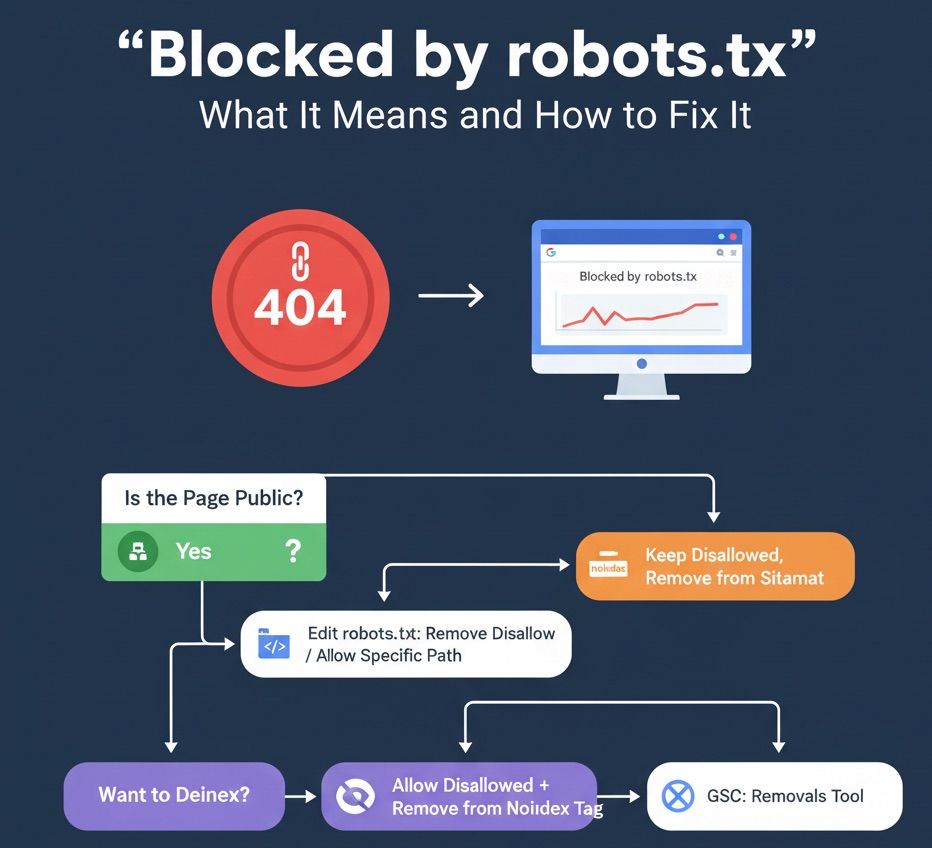
First decide: should the page be crawlable?
- Pages that should be public and rank (e.g., product, collection, blog): should not be disallowed in robots.txt.
- Utility or private pages (e.g., admin, cart, checkout, internal search results): it’s normal to keep them disallowed.
Once you know the intent, fix accordingly.
How robots.txt rules work (quick refresher)
User-agent: *Disallow: /private/Allow: /private/press-kit.pdfDisallow: /*?session=Disallow: /*.pdf$User-agent: which crawler the rules apply to (use*for all).Disallow: path patterns the bot should not crawl.Allow: explicitly whitelists paths inside a disallowed folder.*matches any sequence;$anchors the end of the URL.
Fix 1: Pages should be crawlable and indexable
Goal: Remove or narrow the rule that blocks important content.
- Open
https://yourdomain.com/robots.txtand locate the rule covering your URL(s). - Remove the over-broad disallow, or replace with a more specific rule.
- If you must keep a folder disallowed, use
Allow:for specific files/paths that should be crawlable. - Save and deploy the updated robots.txt, then retest the affected URL in GSC (URL Inspection → Test live URL).
- Make sure the URL is internally linked and included in your XML sitemap for faster discovery.
Examples
Problem: All product pages live under /products/, but you disallowed the entire folder:
# Too broad — blocks all product pagesUser-agent: *Disallow: /products/Fix: Remove the folder-level block or selectively allow what matters:
User-agent: *# Disallow only product JSON endpoints, allow HTMLDisallow: /products/*?view=jsonAllow: /products/Problem: Blocking every URL with parameters also blocks essential pages:
Disallow: /*?Fix: Target only the noisy parameters you truly want to exclude:
Disallow: /*?utm_Disallow: /*&ref=# Keep canonical, crawlable versions accessibleFix 2: Pages are intentionally blocked
If a page should not be crawled (e.g., cart, checkout, internal search), it’s okay to keep it disallowed. For clean reporting:
- Keep these URLs out of your XML sitemap.
- Ensure key public pages are not accidentally grouped under the same disallow pattern.
Fix 3: You want a page not indexed (and it’s currently disallowed)
Because robots.txt prevents crawling, Google can’t see a noindex tag on the page. To reliably remove it from the index:
- Temporarily allow crawling for that URL/path.
- Add
<meta name="robots" content="noindex">(or an X-Robots-Tag header). - Once deindexed, you may reapply a disallow rule if needed.
- For urgent situations, use GSC Removals as a temporary measure while you implement the permanent fix.
Editing robots.txt on common platforms
If your platform allows editing robots.txt (for example, via a theme file or settings), make changes there and redeploy. Many platforms provide a safe default; adjust carefully and avoid broad patterns that block important content (e.g., entire product or blog paths).
Validate and monitor
- Re-test affected URLs in GSC (URL Inspection → Test live URL) to confirm Google can crawl.
- Revalidate issue groups under Indexing → Pages.
- Watch the status over the next few days/weeks as Google recrawls.
Common pitfalls to avoid
- Homepage blocked by
Disallow: /orDisallow: /?— double-check patterns. - Everything blocked due to a stray slash or copy/paste error.
- Over-broad parameter blocks that unintentionally catch canonical URLs.
- Disallow + desire to deindex — remember Google can’t see your
noindexif crawling is blocked.
Quick “Blocked by robots.txt” fix checklist
- Confirm whether the page should be crawlable.
- Locate the blocking pattern in
/robots.txt. - Remove or narrow the rule; use
Allow:for exceptions. - Retest with GSC URL Inspection (live test).
- Keep private/utility pages disallowed and out of sitemaps.
- For deindexing, allow crawl → send
noindex→ (optional) reapply disallow.
Bottom line: Treat “Blocked by robots.txt” as a configuration problem to be confirmed, not an automatic error. Fix overly broad rules for pages that should rank, and keep truly private paths disallowed.